Why Your Apple ID Is Hackers' Main Target and How to Protect It
Your Apple ID is the key to your entire digital life — photos, contacts, payments, passwords. Hackers know this and hunt for it every day. Here's how to build an impenetrable defense.
Why Your Apple ID Is Worth More Than You Think
Your Apple ID is not just a login and password. It is the master key to your entire digital life within the Apple ecosystem: photos and videos in iCloud, all your contacts, iMessage conversations, passwords stored in Keychain, device backups, App Store purchase history, and linked credit cards. If a hacker gains access to your Apple ID, they gain access to all of this at once.
This is exactly why hackers and scammers hunt for Apple IDs with particular determination. In 2025, a database containing 184 million user records was discovered in the public domain. And the total number of compromised logins worldwide has surpassed 16 billion records, covering nearly every online service. Your Apple ID is one of the most coveted targets in this ocean of stolen data.
The good news is that protection is available to everyone. Apple provides powerful security tools — but they only work if you turn them on. This article is your complete guide to building an impenetrable defense for your Apple ID.
How Hackers Get Access to Your Apple ID — The Main Threats
To defend effectively, you need to understand what you're up against. Here are the main methods attackers use:
1. Phishing Messages (SMS, Email, iMessage)
This is the most widespread and dangerous method. You receive a message disguised as an official Apple notification. For example: 'Your Apple ID was used to sign in from an unknown device. Confirm this was you.' or 'Your iPhone has been found. Click the link to view its location.' The link leads to a fake login page that looks almost identical to the real one — with the right fonts, colors, and logos. Once you enter your credentials, they instantly go to the scammers.
2. Social Engineering — 'Sign Into My iCloud'
Scammers use various pretexts to convince the victim to enter someone else's Apple ID credentials on their device. This could be a request to 'verify' an account, 'sync' data, or 'temporarily use' someone else's account. Once you do this, the device is linked to the scammer's account, and they can remotely lock your iPhone via Find My.
3. Credential Stuffing (Password Reuse)
Many users use the same password across multiple services. If that password leaks from a breach of another site, hackers automatically try the same combination on Apple ID. This method, called credential stuffing, works on a massive scale.
4. SIM Swapping
Attackers trick your mobile carrier into issuing a new SIM card with your phone number. They can then intercept SMS messages with two-factor authentication codes and reset your Apple ID password.
Understanding these threats is the first step to protection. Next, we'll build a system that blocks every single one of them.
Level 1: Two-Factor Authentication — Your Primary Shield
Two-Factor Authentication (2FA) is the single most important security setting. If it's turned off, your Apple ID is protected by just one password. If that password leaks, your account is compromised.
With 2FA, the situation is completely different. Even if someone knows your password, when signing in on a new device, the system will ask for a verification code sent to your trusted devices or trusted phone number. Without this code, they cannot proceed.
How to enable it:
- On iPhone/iPad: Settings → [Your Name] → Sign-In & Security → Turn On Two-Factor Authentication
- On Mac: Apple menu → System Settings → [Your Name] → Password & Security → Turn On Two-Factor Authentication
Important nuances:
- Add not one, but two phone numbers — a primary and a backup. For example, your personal number and the number of a close family member who would be available if you lose your SIM or change numbers.
- The code is requested not every time, but only when signing in on a new device or making important account changes.
- On devices with iOS 13.4, iPadOS 13.4, macOS 10.15.4 or newer, two-factor authentication is automatically enabled when creating an Apple ID.
Remember: two-factor authentication is not optional — it's essential. Without it, your account is vulnerable.
Level 2: Recovery Key and Recovery Contact
Two-factor authentication protects against unauthorized access. But what if you lose access to your own account? Forget your password, lose your phone, change your number? Apple provides two additional tools for this.
Recovery Contact
You pre-select a trusted person (parent, partner, close friend) who can help you regain access to your account. Importantly, this person does not gain access to your Apple ID or see your data. They simply help verify your identity when you need it.
How to set it up: Settings → [Your Name] → Sign-In & Security → Account Recovery → Add Recovery Contact. The trusted person must also have two-factor authentication enabled and a device running a recent iOS version.
Recovery Key
This is a long code that Apple generates specifically for your Apple ID. It's needed to restore access if other methods fail.
Important warning: This is a high-responsibility tool. If you lose the key and simultaneously lose access to your trusted devices and numbers, account recovery becomes nearly impossible.
How to set it up: Settings → [Your Name] → Sign-In & Security → Recovery Key. Save the key securely — not in notes on the same iPhone, but in a password manager or print it out and store it in a safe place.
Level 3: Security Keys — Maximum Protection
For those who want maximum security, Apple offers physical security keys (Security Keys). These are hardware devices (like YubiKey) that connect to your iPhone or Mac via USB-C or NFC.
How it works: when signing in to Apple ID on a new device, the system will require not only your password and 2FA code but also physical confirmation through the connected key. Without physical access to the key, signing in is impossible — even if the hacker knows your password and intercepts your SMS.
This is particularly effective against phishing and social engineering — the key cannot be stolen remotely.
Who it's for: public figures, journalists, business executives, activists — anyone who may be the target of targeted attacks.
Level 4: Device Monitoring — Check Who's Signed Into Your Account
Even with 2FA enabled, it's important to regularly check which devices have access to your Apple ID.
How to check on iPhone/iPad:
- Open Settings → [Your Name] → Devices.
- You'll see a list of all devices signed in to your Apple ID.
- If you see a device you don't recognize, tap it and select 'Remove from Account'.
How to check on the Apple ID website:
- Go to account.apple.com and review all devices in your account.
Additional checks:
- Check if any unfamiliar Face ID or Touch ID fingerprints have been added to your device.
- Review the list of installed apps — are there any unfamiliar ones?
- Check if an unknown MDM profile is installed on the device (these profiles are typically installed by employers or educational institutions).
Frequency: check the device list once a month. It takes one minute but can save you from serious problems.
Level 5: Phishing Defense — How Not to Fall for the Trap
Phishing is the most widespread method of stealing Apple IDs. Here's how to recognize and avoid it:
How to Tell a Real Message from a Fake
- Check the website address — the official Apple domain is apple.com and icloud.com. Scammers use similar-looking domains: apple-id-verify.net, apple-security.com, etc.
- Don't click links in suspicious messages. Instead, type the address manually into your browser or open the Settings app.
- Apple will never ask you to confirm your password, enter a code from SMS, or click a link to 'verify' your account.
- Pay attention to the language — phishing messages often contain spelling errors and unnatural phrasing.
Additional Measures
- If you lose your iPhone, enable Lost Mode immediately via the Find My app or iCloud.com/find.
- For displaying contact information on the lock screen, use a separate email address, not your primary one.
- Protect your SIM card with a PIN to make it harder to access in case of theft.
- Don't download apps from links in suspicious messages — only from the official App Store.
The golden rule: if a message raises even the slightest doubt — don't click, don't enter data, don't call the numbers provided. Instead, open Apple's official website and verify the information there.
Level 6: Strong Passwords and Usage Rules
Your password is the first line of defense. Here are the rules that will make it impenetrable:
- Length and complexity: your password should contain at least eight characters, including uppercase and lowercase letters and at least one digit.
- Uniqueness: never use your Apple ID password for other online accounts. If the password leaks from another site, hackers won't be able to use it to access your Apple ID.
- Never share your password, verification codes, or any other security information with anyone. Apple never asks for this information.
- Don't use a shared Apple ID with other people, even family members. For sharing purchases, photos, and calendars, use Family Sharing.
- Change your password regularly — especially if you receive a notification about suspicious activity.
How to change your password:
- On iPhone/iPad: Settings → [Your Name] → Sign-In & Security → Change Password
- On the Apple ID website: account.apple.com
Level 7: Stolen Device Protection
In iOS 17.3, Apple introduced Stolen Device Protection. This is an important tool that protects you even if an attacker physically possesses your iPhone and knows its passcode.
How it works: when the iPhone is outside familiar locations (e.g., not at home or work), performing critical actions (changing Apple ID password, disabling Find My, changing Face ID/Touch ID) requires additional verification and a one-hour security delay.
How to enable: Settings → [Your Name] → Sign-In & Security → Stolen Device Protection.
This feature doesn't protect against remote attacks, but it is extremely effective against physical theft and situations where a scammer watches you and memorizes your passcode.
The Complete Security System: What to Do Right Now
Here is the action checklist you need to complete right now to ensure your Apple ID is fully protected:
- ✅ Turn on Two-Factor Authentication — this is the most important step.
- ✅ Add two trusted phone numbers — primary and backup.
- ✅ Set up a Recovery Contact — choose a trusted person.
- ✅ Create and save your Recovery Key — in a secure location.
- ✅ Check the device list in Settings → [Your Name] → Devices and remove any unfamiliar ones.
- ✅ Change your password to a strong and unique one.
- ✅ Enable Stolen Device Protection (on iOS 17.3 and newer).
- ✅ Update iOS to the latest version — new versions always contain important security fixes.
These steps will take no more than 10 minutes, but they will create a multi-layered defense that stops most attacks.
What to Do If You've Already Become a Victim
If you suspect your Apple ID has been compromised, act immediately:
- Change your Apple ID password immediately — via Settings or account.apple.com.
- Remove suspicious devices from your account: Settings → [Your Name] → Devices.
- If scammers accessed your card — immediately block it through your bank.
- Check all your Apple ID data at account.apple.com — are there any changes you didn't make?
- Enable Two-Factor Authentication if it's not already enabled.
- Contact official Apple Support and report the account compromise.
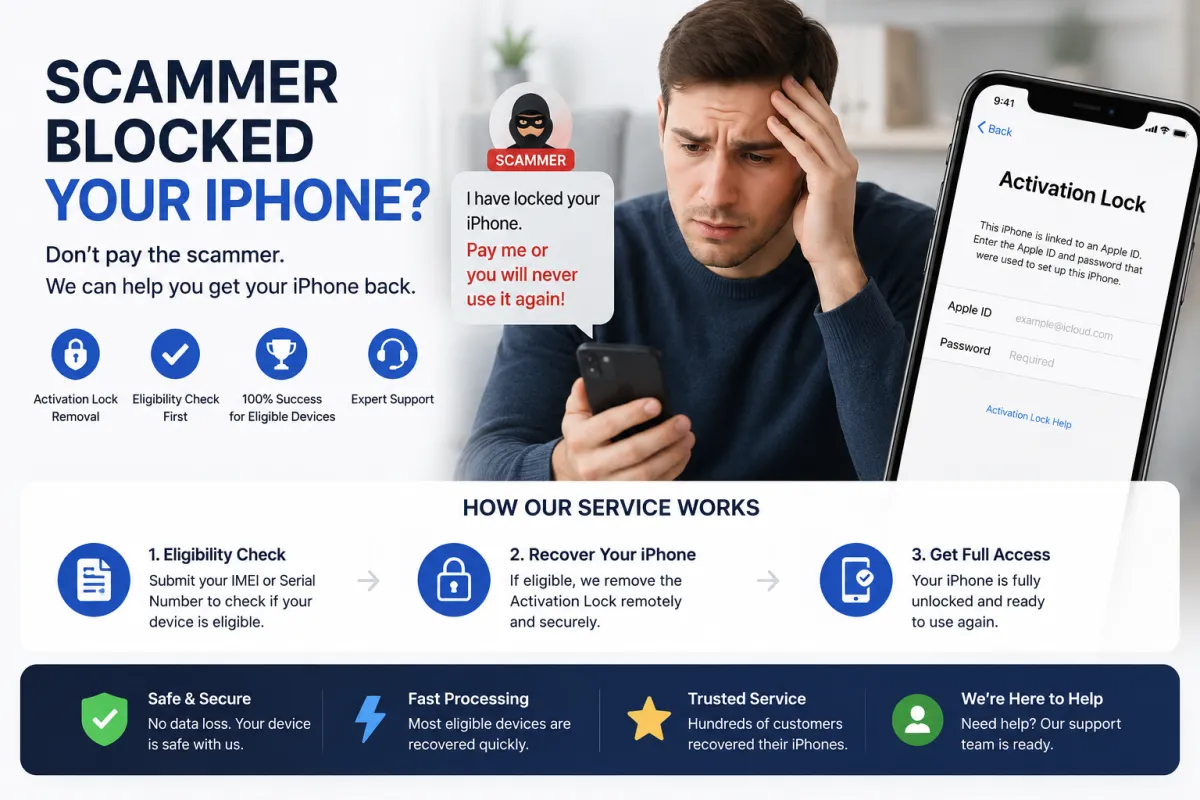
Important: if your device is already locked by scammers through Activation Lock — do not pay the ransom. Contact Apple Support with proof of ownership or use our IMEI unlock service — check eligibility through our free checker.
Frequently Asked Questions
Q1: Is Two-Factor Authentication mandatory?
A: Yes. This is the most important security setting. If it's turned off, your Apple ID is protected only by a password, and if that leaks, your account will be compromised.
Q2: How often should I check the device list?
A: We recommend once a month. It takes a minute but helps you notice unauthorized access early.
Q3: What should I do if I receive a suspicious message from Apple?
A: Don't click links or enter any data. Open Apple's official website (apple.com) manually and verify the information there. Apple never asks for your password or code via SMS.
Q4: Can I use the same password for Apple ID and other services?
A: Absolutely not. If the password leaks from another site, hackers will try it on Apple ID as well.
Q5: What is a Recovery Key and why do I need it?
A: It's a long code for restoring access if you lose all other sign-in methods. Store it securely — if you lose the key, recovering your account will be nearly impossible.
Q6: What is Stolen Device Protection for?
A> It protects you if someone steals your iPhone and knows your passcode. Outside familiar locations, changing critical settings requires additional verification and a security delay.
Q7: My iPhone is locked via Activation Lock. What should I do?
A: Don't pay the ransom. Contact Apple Support with proof of purchase or use our IMEI unlock service — check eligibility through our free checker.
Q8: How can I tell if my Apple ID has been hacked?
A> Main signs: you can't sign in, you received a password change notification you didn't make, you see unfamiliar devices in the list, or you notice unauthorized purchases.