How Apple ID Hacking Happens – Common Attack Vectors
Understanding how hackers gain access to your Apple ID is the first step to preventing future attacks. Here are the most common methods:
1. Phishing (Email, SMS, or Phone)
You receive a convincing message that appears to be from Apple, asking you to verify your account, confirm billing information, or reset your password. The link leads to a fake Apple login page that steals your credentials. Some phishing attempts are highly sophisticated, replicating Apple's official design perfectly.
2. Data Breach / Credential Stuffing
If you reuse your Apple ID password across multiple websites, a data breach at one of those sites can expose your password. Hackers then try the same email and password combination on Apple's login page. This is called 'credential stuffing' and is extremely common.
3. SIM Swapping
A hacker tricks your mobile carrier into transferring your phone number to a SIM card they control. They then use your phone number to intercept 2FA verification codes and reset your Apple ID password. This is one of the most devastating attacks because it bypasses SMS-based 2FA.
4. Social Engineering
The hacker calls you pretending to be Apple Support, a bank, or a trusted service and convinces you to share your Apple ID password, 2FA codes, or security questions. They may also trick you into installing a profile or app that gives them remote access.
5. Malware / Keyloggers
If you installed malicious software on your computer or iPhone (often via fake apps or downloads), a keylogger could capture your Apple ID password as you type it. This is less common on iOS but more prevalent on macOS and Windows computers.
6. Weak / Guessable Passwords
If your password is simple (e.g., 'password123', 'qwerty', or your birthdate), a hacker can brute-force guess it or use dictionary attacks to crack it.
Key takeaway: In most cases, the hacker's goal is to lock you out, sell your account, use your Apple Pay, access your iCloud data (photos, messages, contacts), or hold your devices for ransom.
Immediate Steps After Discovering Your Apple ID Is Hacked
The moment you realize your Apple ID password has been changed and you cannot log in, every second matters. Follow these steps in order:
- Do not panic – panicking leads to mistakes. Stay calm and follow the structured process below.
- Attempt password reset immediately – go to iforgot.apple.com and enter your Apple ID. Click 'I need to reset my password'. If the hacker has changed your recovery email and phone number, this may not work, but try anyway.
- Check your email for Apple password change notifications – Apple sends an email whenever your password is changed. This email contains instructions on how to revert the change if you did not authorize it. Act quickly—the hacker may have deleted this email from your account.
- Check your trusted devices – if you have a Mac, iPad, or another Apple device that is still signed in, check if you can still access your iCloud settings. Sometimes, already authenticated devices remain signed in even after a password change. If you can access it, change your password from that device immediately.
- Use Apple's Account Recovery – if the password reset fails because the hacker changed your recovery information, initiate Account Recovery. This is Apple's process for verifying your identity and restoring access. Go to iforgot.apple.com and follow the prompts. You will be asked for your trusted phone number (if still yours) or to answer security questions.
- Contact Apple Support directly – call Apple Support at 1‑800‑MY‑APPLE (or your local number) and explain that your Apple ID was hacked. Be prepared to verify your identity with proof of purchase for your devices.
- Check your Apple Pay and saved cards – if you have access to any Apple device, check Wallet for any unauthorized transactions. Contact your bank to freeze any affected cards.
Critical: If your device is already locked with Activation Lock or Lost Mode (because the hacker enabled Find My), you will need to recover your Apple ID first and then remove the lock. If you cannot recover the Apple ID, proceed to the device unlock options below.
Detailed Guide to Apple's Account Recovery Process
Apple's Account Recovery is the official way to regain access to your account when you cannot reset your password using standard methods. Here is exactly how it works:
What You Need:
- Your Apple ID email address.
- Access to any trusted phone number or email associated with the account (the hacker may have changed these).
- If you have none of these, you will need proof of ownership for at least one device linked to the account.
- Patience—Account Recovery can take from a few days to several weeks, depending on the information you can provide.
Step-by-Step Process:
- Go to iforgot.apple.com and enter your Apple ID.
- Select 'I need to reset my password'.
- If you have a trusted phone number (that still belongs to you), Apple will send a 2FA code. If you cannot receive it, click 'Don't have access to this phone?' and select the option to start Account Recovery.
- Answer security questions. If you don't remember them or the hacker changed them, click 'I don't remember' and proceed to the next step.
- Apple will ask you to confirm your identity by providing payment details (the credit card on file with Apple) or device serial numbers (for iPhones, iPads, or Macs linked to the account).
- If you pass this verification, Apple will place your account into a recovery waiting period. This can range from 24 hours to 14+ days. The waiting period is designed to prevent hackers from rushing the process.
- After the waiting period, Apple will send a password reset link to your recovery email or phone number. Use it to set a new, strong password.
- Once you regain access, immediately review all account settings – check trusted devices, recovery emails, and security questions. Remove any changes made by the hacker.
What If You Have No Recovery Information at All?
If you cannot provide any trusted phone number, security question answers, or payment details, your only option is to contact Apple Support with proof of purchase for your Apple devices. Apple will manually verify your identity, which can take additional time. Without this proof, account recovery may be impossible.
Pro tip: Always keep your recovery information up to date. Add multiple trusted phone numbers and an extra recovery email to make future recovery easier.
Device Recovery – Unlocking iPhones Locked by the Hacker
When a hacker takes over your Apple ID, they often enable Find My iPhone on your devices and put them into Lost Mode or Activation Lock. Even after you recover your Apple ID, you may still need to remove the lock from your devices. Here is how:
Scenario A – You have successfully recovered your Apple ID:
- Log in to iCloud.com/find with your recovered Apple ID.
- Select your locked device from the list.
- Click 'Remove from Account' or 'Erase iPhone' (if needed) to disassociate the device from the account.
- Restart your iPhone. The Activation Lock screen should disappear, and you can set up the device with your own Apple ID.
Scenario B – You cannot recover your Apple ID (or Apple refuses):
If you cannot regain access to your Apple ID account, the device remains locked to the hacker's account. In this case, you have two options:
- Apple Support – contact them with your proof of purchase. They can remove the Activation Lock from the device even if you cannot recover the Apple ID itself. However, you will still need to create a new Apple ID to use with the device.
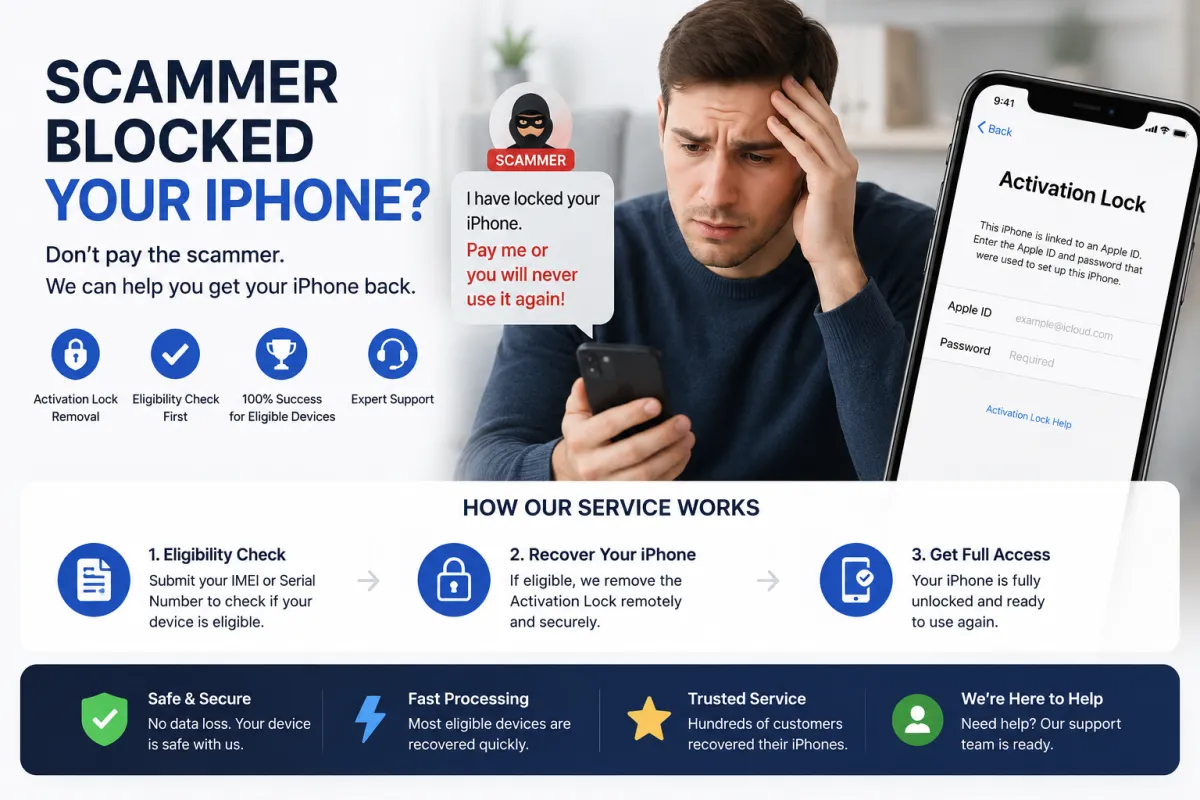
- Third‑Party IMEI Unlock – services like S7OFF can remove the Activation Lock using your device's IMEI. They do not require you to recover the Apple ID first—the unlock is performed server‑side, removing the hacker's association from Apple's database.
How S7OFF works for hacked Apple IDs:
- Provide your device IMEI (dial
*#06#if you can access the phone, or check the original box/receipt). - S7OFF runs a free eligibility check.
- If eligible, the unlock is processed within 1–3 business days.
- After completion, restart your iPhone—the Activation Lock is gone, and you can set it up with a new or recovered Apple ID.
Important: S7OFF unlocks the device, but it does not recover your Apple ID account. You must still recover your account through Apple to access iCloud data and prevent the hacker from locking your device again (if they still have your account).
Securing Your Apple ID After Recovery – Essential Steps
Once you regain access to your Apple ID, take these steps immediately to lock out the hacker permanently:
- Change your password again – set a new, strong, unique password. Use a password manager to generate and store it. Never reuse this password elsewhere.
- Enable Two‑Factor Authentication (2FA) – if you haven't already, enable 2FA immediately. This adds a critical layer of security that makes it much harder for hackers to access your account even if they get your password.
- Review and update your trusted phone numbers – go to appleid.apple.com > Security and remove any phone numbers you don't recognize. Add your current phone number and consider adding a secondary trusted number (e.g., a family member's).
- Review and update your recovery email – remove any unfamiliar recovery emails and add your own. This is the backup method Apple uses to verify your identity.
- Review all devices linked to your Apple ID – go to appleid.apple.com > Devices. Remove any device you don't recognize (this forces them to re‑authenticate).
- Check App Store / iTunes account – review recent purchases and subscriptions. The hacker may have used your saved payment methods to buy apps, games, or in‑app purchases. Contact Apple for refunds if necessary.
- Check iCloud Keychain – if you used iCloud Keychain, change all sensitive passwords (banking, email, social media) stored in it. The hacker may have exported your keychain data.
- Check Find My iPhone – ensure that only your devices are listed. Remove any unfamiliar devices.
- Review shared accounts – if you use Family Sharing, review the family members and remove anyone you don't recognize.
- Check email forwarding rules – hackers often set up email forwarding in your iCloud Mail to automatically forward sensitive emails (password resets, 2FA codes) to their own address. Go to iCloud Mail settings and check for forwarding rules or mail filters.
After securing your account: Consider changing your email password (if it is the same) and enabling 2FA on your email provider as well. Many Apple ID hacks start with a compromised email account.
Prevention – How to Protect Your Apple ID from Future Hacks
Preventing a future hack is easier than recovering from one. Implement these best practices:
- Use a strong, unique password – at least 16 characters, with a mix of letters, numbers, and symbols. Never reuse passwords across different accounts.
- Enable Two‑Factor Authentication (2FA) – this is non‑negotiable. Without 2FA, your account is significantly more vulnerable.
- Use 2FA via authenticator app, not SMS – if possible, use an authenticator app (like Google Authenticator or Authy) instead of SMS for 2FA. This prevents SIM‑swap attacks.
- Add multiple trusted phone numbers – include a backup number (e.g., a partner or family member) to ensure you have a recovery method.
- Set up a recovery email – use a secondary email address that is also well‑secured with 2FA.
- Be wary of phishing – never click links in unsolicited emails or texts. Always type apple.com or icloud.com directly into your browser.
- Check your Apple ID devices regularly – review appleid.apple.com > Devices monthly to spot unfamiliar devices.
- Enable SIM lock on your mobile account – contact your carrier and set up a PIN or password to prevent SIM‑swapping.
- Use a password manager – this helps you generate and store strong, unique passwords without needing to remember them.
- Set up Account Recovery Contacts – on iOS 15 and later, you can add trusted friends or family members to help you recover your account if you get locked out. Go to Settings > Apple ID > Password & Security > Account Recovery.
- Keep your devices updated – always install the latest iOS, macOS, and security updates to patch vulnerabilities.
What NOT to Do – Critical Mistakes
| ❌ Avoid This | Why It's Dangerous |
|---|---|
| Paying a ransom | Scammers rarely restore access after payment. They see you as a target and will demand more money or disappear. |
| Creating a new Apple ID without recovering the old one | This does not unlock your devices or regain access to your iCloud data. You lose everything associated with the old account. |
| Attempting to 'hack' the hacker's account | This is illegal and dangerous. You could compromise your own security further. |
| Reusing your old password | The hacker already knows it. Use a completely new, unique password. |
| Ignoring suspicious activity on other accounts | The hacker may have used your Apple ID to access other services (e.g., if you used Apple to sign in to third‑party apps). Check all connected accounts. |
| Waiting to take action | Every day the hacker has access to your account increases the risk of data loss, financial theft, and further damage. |
Frequently Asked Questions (FAQ)
Q1: How do I know if my Apple ID was hacked?
A: Common signs include: being unable to log in with your password, receiving an unexpected password change email from Apple, seeing unfamiliar devices on your account, or getting a ransom demand on your locked iPhone.
Q2: Can I recover my Apple ID without the trusted phone number?
A: Yes, but it is more difficult. You will need to go through Apple's Account Recovery process and provide proof of ownership (receipts, serial numbers, payment details). It can take days or weeks.
Q3: How long does Apple's Account Recovery take?
A: It varies. If you have recovery information (trusted phone, security questions), it may take minutes. If you are in full recovery mode with no verification methods, it can take anywhere from 24 hours to 14+ days.
Q4: Can S7OFF recover my Apple ID account?
A: No. S7OFF only unlocks iPhones that are Activation Locked. They cannot recover your Apple ID password or account. You must use Apple's official Account Recovery process for that.
Q5: Can S7OFF unlock my device if it's locked to the hacker's Apple ID?
A: Yes, if your device is eligible. S7OFF performs a free eligibility check using your IMEI. If eligible, they can remove the Activation Lock from the device, allowing you to set it up with a new or recovered Apple ID.
Q6: What if the hacker changed my Apple ID email address?
A: If the hacker changed your Apple ID (the email you use to log in), recovery is more complex. Contact Apple Support immediately—they can help you prove ownership and restore your original Apple ID.
Q7: Can the hacker access my iCloud photos and messages?
A: Yes. If they logged into your iCloud account, they can access iCloud Photos, iCloud Drive, iMessages (if synced), and other cloud data. After recovery, review your data for any changes or deletions. Consider changing passwords for all apps that use iCloud.
Q8: What if the hacker used my Apple Pay?
A: Contact your bank and Apple Support immediately to report unauthorized transactions. Apple Pay transactions are tied to your account, so you may be able to dispute them. Also, remove all saved cards from Wallet and add them back after securing the account.
Q9: Is there a way to prevent the hacker from locking my devices again after recovery?
A: Yes. After recovering your account, immediately change your password, enable 2FA, remove all unfamiliar devices, and sign out of all browsers. The hacker will be logged out of all sessions and cannot re‑lock your devices.
Q10: Can I use S7OFF if I don't have the original receipt?
A: Yes. Unlike Apple, S7OFF does not require proof of purchase. They only need your IMEI and a service fee. This makes them a great option for people who lost their receipts or bought the device second‑hand.